Quick answer: A smart-glasses display creates a small digital image, guides its light through an optical system, and delivers it to the eye while the wearer still sees the real world. But “smart glasses” does not automatically mean “glasses with a screen.” Many camera-and-audio models have no in-lens display at all. The most useful buying question is therefore not simply whether a device is smart, but where the information appears, how readable it is in your environment, and what compromises the optics introduce.
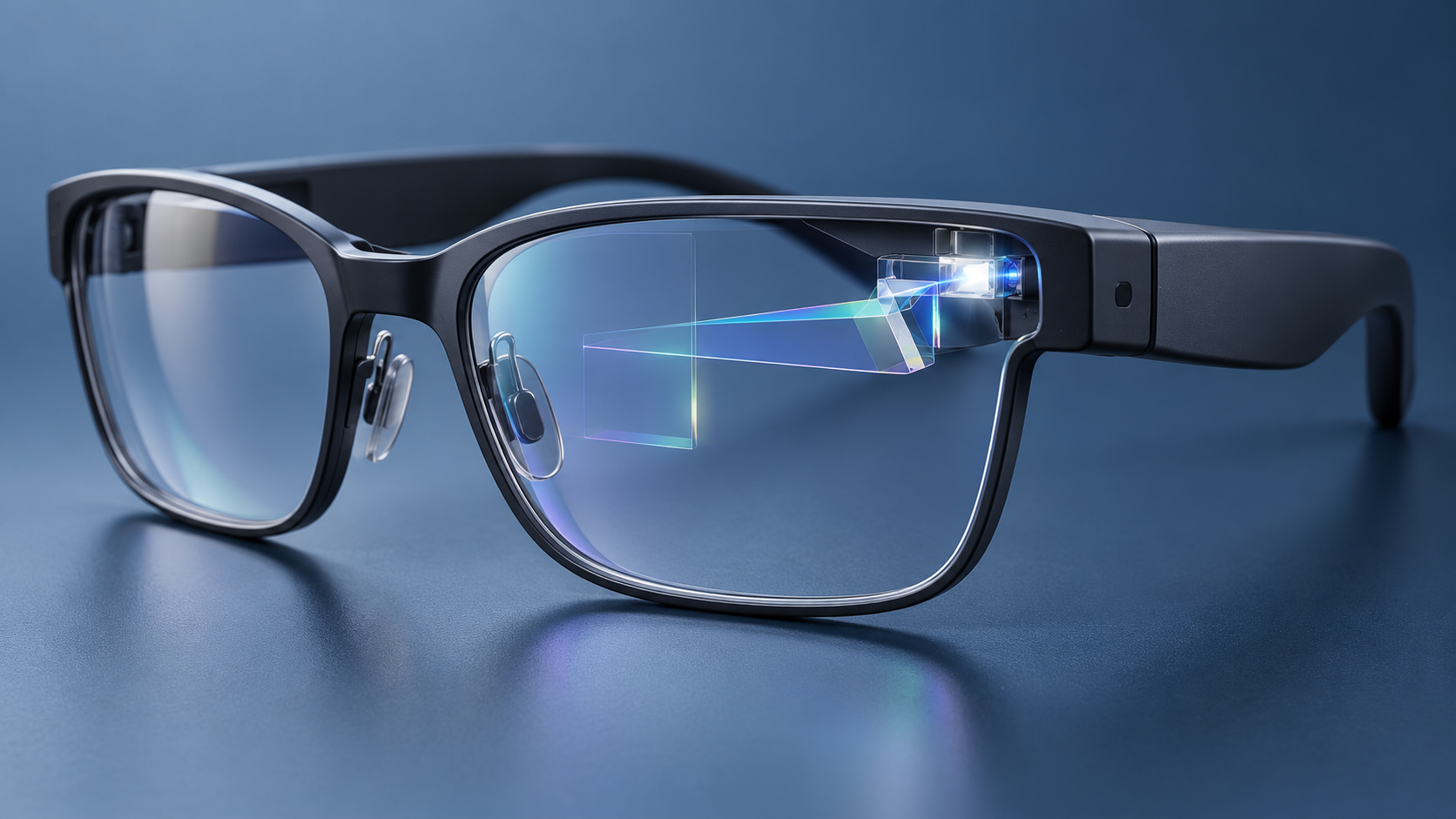
Start by separating three products that share a name
Audio-first glasses place microphones, speakers and sometimes cameras in a familiar frame. They can speak an answer into your ear, yet show no pixels in the lens. Heads-up-display (HUD) glasses put compact information such as a prompt or navigation cue into part of the field of view. Larger spatial-display devices can show much more content, often with a bulkier optical assembly and different power needs. These categories overlap in marketing, so verify the actual display specification and try the glasses with the intended content before buying.
| Device category | Where information appears | Typical strengths | What to check |
|---|---|---|---|
| Camera/audio smart glasses | Phone screen or spoken audio; usually no lens image | Light, familiar form and hands-free audio | Do not assume a screen is present |
| Compact in-lens HUD | Small region near or inside the lens | Glanceable directions, short messages or captions | Text legibility, alignment and brightness |
| Expanded spatial display | Larger virtual image viewed through optics | More room for media or work surfaces | Weight, field of view, fit and power source |
For a concrete example, Meta describes Meta Ray-Ban Display as a product with a full-color in-lens display for messages, walking directions and captions. That should not be confused with every Ray-Ban Meta camera/audio model. Product lines and features change, so use the exact model name on the manufacturer’s current specification page.
The image path: from pixels to the eye
The system begins with a very small image source, often called a microdisplay. Electronics render the text or picture, and projection optics shape its light. A combiner then directs part of that light toward the eye while passing much of the outside scene through. In one common approach, a waveguide embedded in or attached to the lens transports light across a thin optical layer and extracts it toward the wearer. Other designs use a small prism or “birdbath” optical arrangement. The result is a virtual image: the text appears at a comfortable apparent distance rather than painted on the physical lens surface.
That explanation is a functional model, not a claim that every brand uses the same proprietary optical stack. Two products can both advertise an in-lens display while differing significantly in light efficiency, field of view, image position and prescription compatibility. A demo that looks bright indoors may become difficult to read outside because sunlight reduces contrast. A larger virtual image may require more optical volume, battery energy or careful eye positioning.
Why “display resolution” alone does not settle readability
Consider a walker who wants the next turn and a mechanic who wants several lines of instructions. The walker needs a glanceable cue that remains visible in daylight; the mechanic needs stable, detailed text while looking at a nearby object. The same nominal pixel count may serve one case and fail the other. Ask for the field of view, brightness in the conditions you actually use, text size, latency, fit range and whether the display can be aligned with your eyes. Prescription lenses and a slightly different nose bridge can move the eye away from the intended viewing zone, sometimes called the eyebox.
| Claim on a spec sheet | Why it matters | Practical check |
|---|---|---|
| Resolution | Limits fine detail but does not guarantee readable text | Read a real message at normal font size |
| Field of view | Determines how much content fits without moving the head | Look for clipped corners or frequent scrolling |
| Brightness and contrast | Strong ambient light washes out virtual content | Test indoors and in safe outdoor daylight |
| Eyebox and fit | Small changes in position can crop or blur the image | Try the frame with your prescription and normal posture |
| Latency | Slow updates make moving prompts uncomfortable | Walk slowly and watch whether the cue remains stable |
Waveguide, prism and camera/audio: a useful comparison
Waveguides are attractive for a thinner silhouette, but coupling light into and out of a thin substrate is optically demanding. Prism-based arrangements can be easier to understand visually but may need a more prominent lens assembly. Camera/audio glasses avoid an in-eye image and its alignment problem entirely; the trade-off is that answers are spoken or viewed on a phone. None is universally best. Match the system to the task rather than to a fashionable label.
For short route prompts, a modest HUD may be enough. For long reading, the phone may still be easier on the eyes. For translation, distinguish visual captions from spoken translations and from recognition of printed text: those are separate pipelines. Our guide to translating printed text with smart glasses explains the difference. If your priority is audio while moving, see our open-ear audio and cycling safety guide.
How to evaluate a display without a lab
Bring three realistic tasks to a demo: a short direction, a two-line message and a high-contrast picture or icon. Repeat each while standing still, walking slowly and wearing your usual corrective lenses. Check whether the image stays complete when you move the frame slightly. Then move between a shaded room and bright daylight. Do this in a safe location; do not test while driving or crossing a road. Note any double image, eye strain, distraction or blocked peripheral view. A five-minute trial cannot establish long-term comfort, but it will expose obvious fit problems.
Also ask whether the display is visible in one eye or both, whether lens tint changes outside visibility, whether the app or internet is required for the intended feature, and what happens when the battery runs out. If the product claims prescription support, obtain the supported prescription range and fitting process in writing. For a team purchase, test more than one face shape and document the rate of people who cannot see the complete image; an attractive single-user demo is weak evidence for a fleet.
Decide whether you need pixels at all: If spoken audio is enough for your task, compare our YJ007-K20 audio glasses as an audio-first alternative. Its product page describes calls and music, not an in-lens display; do not buy it expecting visual HUD text.
Limitations and buying decision
Display smart glasses are best when the information is brief, timely and worth seeing without raising a phone. They are less convincing when content is dense, lighting is extreme or fit is poor. A device that provides audio only may be the better and less distracting choice for some jobs. Compare the complete task, including app setup, battery, prescription fit and privacy, rather than a single display number. Manufacturer pages establish what a particular product advertises; your own fit test establishes whether it works for you.
Sources and review notes
Product example and stated capabilities: Meta’s announcement of Meta Ray-Ban Display; current product family distinctions: Ray-Ban’s smart-glasses guide. The optical explanations and evaluation checklist above are a general technical framework, not a teardown or independent laboratory measurement of these models. Reviewed 27 October 2026.