Quick answer: Ray-Ban Meta smart glasses charge while docked in their compatible charging case; the case itself charges through USB-C. The glasses and case have separate batteries. If the glasses appear dead, first check that the frame is switched on, the case has power and the charging contacts meet cleanly. Do not assume every generation uses the same case, LED pattern or charging time. This guide focuses on Ray-Ban Meta camera/audio glasses and flags where Meta Ray-Ban Display differs.
Identify the product before following instructions
“Ray-Ban Meta” can refer to multiple generations and designs. Meta Ray-Ban Display is another product with an in-lens screen and a different case layout. The easiest way to avoid confusion is to check the model in the Meta AI app or on the frame and then use the matching Ray-Ban Meta support page. Ray-Ban’s Display FAQ describes an inside LED for the glasses and an outside LED for the case. That detail does not describe every non-Display case. A generic internet photo can be misleading if it shows a different generation.
| Question | Ray-Ban Meta camera/audio glasses | Meta Ray-Ban Display |
|---|---|---|
| How do glasses charge? | Dock in the matching charging case | Dock in the matching charging case |
| How does case charge? | USB-C connection to the case | USB-C connection to the case |
| Where is status shown? | Case LED and Meta AI app | Separate inside and outside case LEDs plus app |
| Can one set of instructions cover both? | No. Check the official support page for the exact model and generation. | |
Normal charging sequence
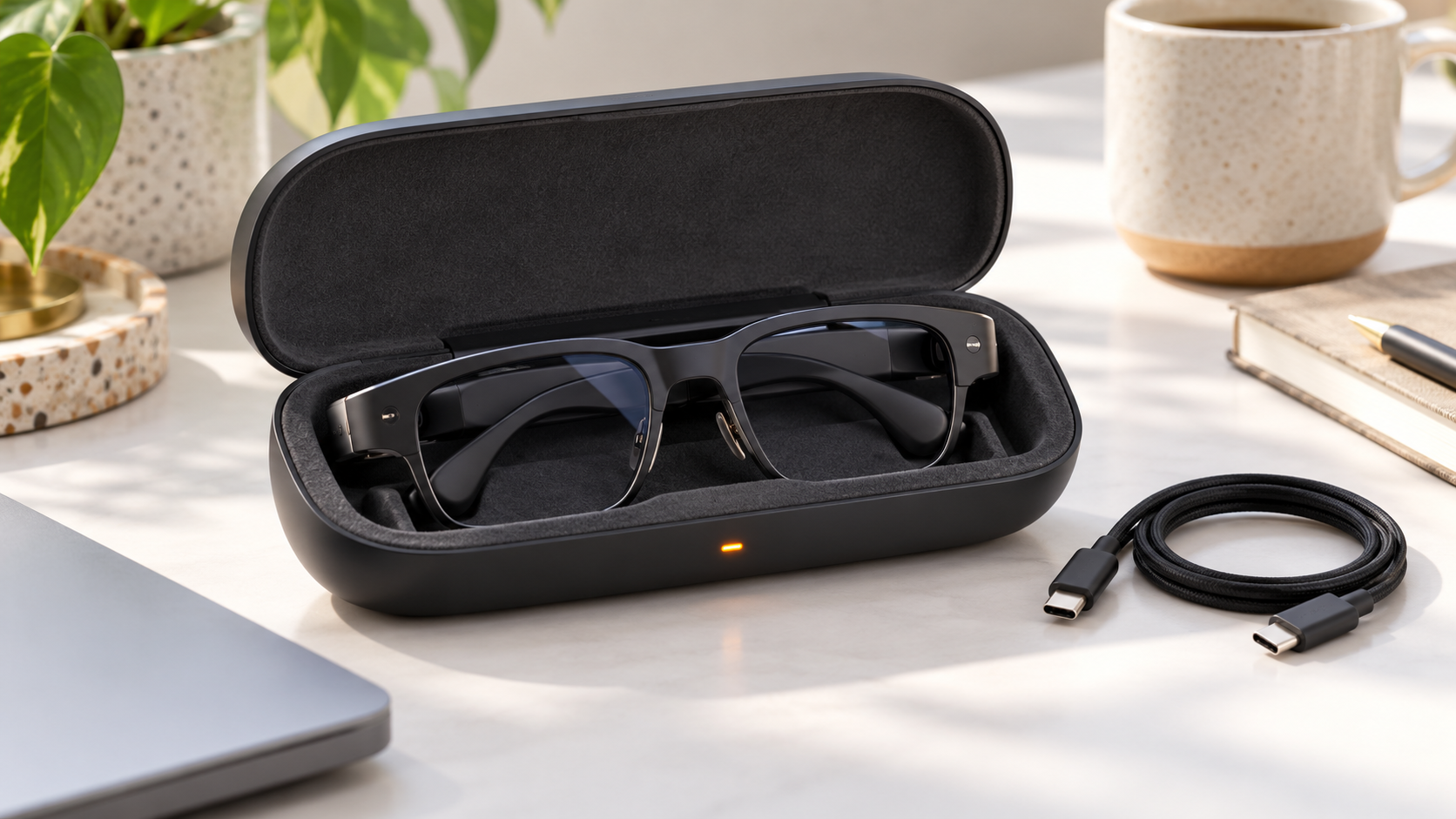
For Ray-Ban Meta glasses, place the folded glasses in the case so the bridge contacts line up with the case contacts, then close the lid. Ray-Ban says the case LED blinks after proper docking; the Meta AI app can also show a charging icon. On first use, check that the protective plastic tab has been removed from the metal charging connection. To charge the case, connect a suitable USB-C cable and power adapter to its port. Ray-Ban describes the case as the method for charging the glasses; plugging a cable directly into the frame is not the documented method.
The published FAQ says a supported Ray-Ban Meta model can reach a full glasses charge in approximately 75 minutes and 50% in approximately 22 minutes, but charging rates and battery life vary by generation, temperature and product version. Treat these as maker-stated figures for the models covered by that FAQ, not as our measured result or a promise for an older frame. Also distinguish “case charged” from “glasses charged.” A case with power can still fail to transfer charge if the glasses are not seated correctly.
Read the LED in context
On the Ray-Ban Meta support page, solid green indicates the glasses are fully charged, solid orange indicates charging and blinking red indicates a charging error in the described context. LED meanings can depend on whether the case is open, closed, empty, occupied or connected to power. Check the app when possible. If a color seems inconsistent, identify what the case is reporting before assuming that both batteries have the same level.
| Observation | Likely first check | Next action |
|---|---|---|
| No LED reaction when docking | Is the case charged and are glasses seated? | Remove, inspect contacts, reseat and close |
| Case charges, glasses do not | Protective tab or dirty bridge contacts | Clean gently per manufacturer guidance |
| Red blinking light | With glasses docked, check for a charging error; some Ray-Ban Meta case guidance says red blinking with the case open and glasses removed means an empty case battery | Consult exact-model LED guide; try another power source |
| App battery level not updating | Glasses/app connection | Reconnect and check app version |
| Very short runtime after charging | Actual workload and battery condition | Record test conditions and contact support |
Troubleshoot safely and in order
Start with the least intrusive checks. Confirm the power switch position; the glasses can look unresponsive when off. Charge the case from a known working outlet and cable, then dock the glasses for a sustained period. Remove the glasses and inspect both sides of the charging interface for a leftover shipping tab, dust, dried sweat or moisture. Use only the cleaning method in the official instructions; do not scrape contacts with metal or pour liquid into the case. Reseat the frame firmly but without force. If the case still gives no charging indication, try a different suitable USB-C cable, adapter or outlet. These steps follow the sequence in Ray-Ban’s FAQ; they are not a repair guarantee.
Do not jump directly to a factory reset because a reset cannot fix a discharged case or broken contact. It can erase unimported captures and require re-pairing. If a software issue remains after charging and reconnecting, see our reset-versus-restart guide. If the product becomes unusually hot, visibly damaged or wet, stop charging and use official support. Avoid improvised charging pins or third-party procedures that bypass the case.
How to evaluate battery claims
Battery percentages are estimates based on each device’s own reporting. If the case shows one level while the phone app shows another, first determine whether one reading is for the case and the other for the glasses. Let the app reconnect and refresh before drawing conclusions. A charge test is most useful when the frame starts at a known level, is docked for a known time, and its level is checked immediately afterward. Do not repeatedly drain a lithium-ion battery to zero simply to “calibrate” an estimate unless the manufacturer specifically instructs you to do so.
Storage conditions matter as much as the USB-C cable. Avoid leaving the case in a hot parked car or charging while the contacts are visibly wet. If the glasses were used in rain or heavy sweat, follow the official cleaning and drying guidance before docking. A charging error that occurs only after vigorous activity points toward contact contamination or temperature, but it does not prove either cause; document the conditions and ask official support if it persists. Keep the model, serial number and purchase record ready if a warranty claim becomes necessary.
Two owners may see different runtime without either device being faulty. Recording video, taking calls, using voice features, playing audio and maintaining a weak connection have different power demands. The case adds portable capacity but also needs its own charge. For a useful personal comparison, document the model, software version, starting battery level, activity, volume, network conditions and temperature. Compare that consistent routine over several days. A single “lasted only three hours” report without the workload cannot fairly be compared with a manufacturer’s “up to” specification.
For travel, charge both case and glasses before leaving, carry the correct cable and check the case LED rather than assuming the case is full because the frame is full. If using a separate power bank for the case, follow the manufacturer’s USB-C and travel guidance. For more background on safe power-bank air travel, read our power bank on a plane guide; airline rules concern the power bank, not a reason to alter the glasses’ charging method.
Comparing charging designs? Our YJ003 detachable-battery smart glasses use a different product architecture from Ray-Ban Meta. Check that model’s own charging instructions if you consider it; the Ray-Ban case and LED steps above do not apply to YJ003.
Sources and review notes
Manufacturer instructions and LED behavior: Ray-Ban Meta FAQ. Model comparison: Meta Ray-Ban Display FAQ. Product lines, firmware and charging figures may change. We have not independently timed a sample or diagnosed an individual device; the troubleshooting table is an ordered interpretation of official guidance. Reviewed 27 October 2026.