Quick answer: Charge the glasses, put them into the pairing or discoverable mode described in their manual, then open Bluetooth settings on the iPhone or Android phone and choose the device name. Some models also require their manufacturer’s app for setup or camera and AI functions. Because button presses, light patterns and app permissions differ by model, do not rely on a universal “hold for ten seconds” instruction. This guide gives a safe sequence and shows how to isolate the most common connection problems.
Pairing is a one-time registration between devices; connecting is the later step of using that registration. Seeing the glasses in a list does not always mean music, calls and any companion app are all configured. Check each function separately. The instructions below draw on Apple’s third-party Bluetooth pairing guide and Google’s Android/Pixel pairing guide, with model-specific steps left to the maker’s manual.
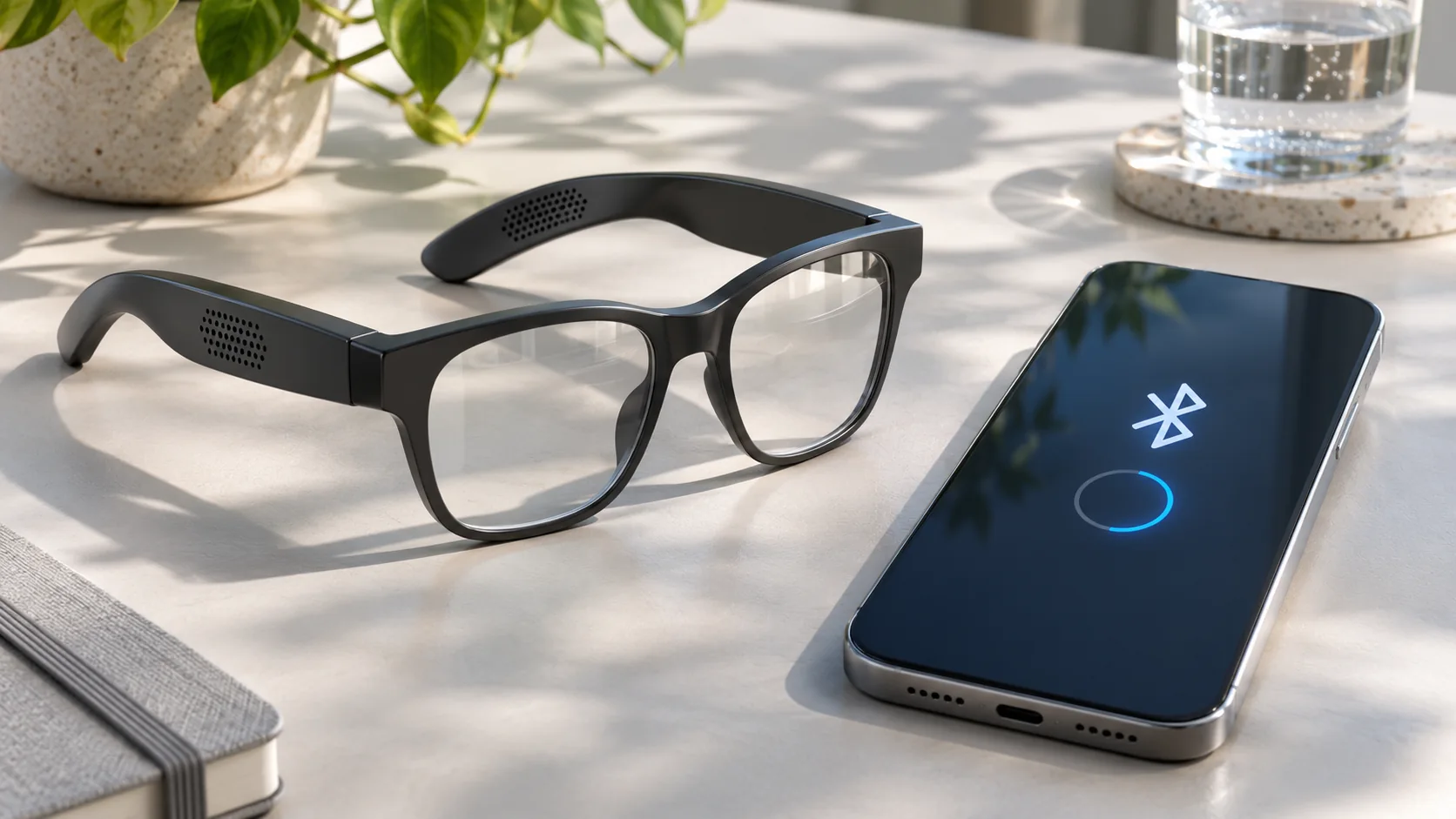
Before pairing: four checks that save time
- Identify the exact model on the frame, box or manual. The product name in Bluetooth may differ from the retail name.
- Charge both the glasses and the phone sufficiently for setup. Use the supplied or manufacturer-approved case and cable.
- Check whether the glasses are already connected to another phone or tablet nearby. Disconnect or turn off Bluetooth on that device if the manual requires it.
- Read the model’s pairing-mode instructions. A blinking light may indicate charging, pairing or an error depending on the model.
On a managed company phone, Bluetooth and app installation may be restricted by device policy. If a companion app is required, verify that it is published by the device manufacturer and compatible with your phone’s operating-system version. Do not grant permissions blindly: camera, location and microphone access should match features you actually intend to use.
Pair smart glasses with an iPhone
- Place the glasses in pairing mode according to their own manual, usually with the glasses close to the phone.
- On the iPhone, open Settings → Bluetooth and turn Bluetooth on.
- Look under nearby devices and tap the exact name for the glasses. Follow any pairing prompt or code instruction supplied by the maker.
- If the manufacturer’s app is part of setup, install it from the official App Store listing and complete its device-registration steps.
- Test one function at a time: audio output, microphone on a call and any app-only feature.
Apple’s support instructions explicitly tell users to consult the accessory manual to make it discoverable, then select it in Bluetooth settings. If the product pairs but the companion app cannot find it, Apple also recommends reviewing the app’s Bluetooth permission in its connection troubleshooting guide. Menus can vary slightly by iOS version; use the phone’s own Settings search if necessary.
Pair smart glasses with an Android phone
- Put the glasses into the pairing mode specified by the manufacturer.
- Open Settings → Connected devices → Pair new device, or search the Settings app for Bluetooth; names vary across Android brands.
- Enable Bluetooth, choose the glasses from the nearby-device list and accept any prompt.
- If the model uses a companion app, install the official version and follow its setup flow. Give only the permissions needed for selected functions.
- Confirm that audio and calls route correctly. If not, inspect the device’s Bluetooth settings for available media and call toggles.
Google’s Pixel help page describes this standard route and explains that Fast Pair is available only for supported accessories. Not every pair of smart glasses uses Fast Pair, so the lack of a pop-up is not proof of a defect. The manual or vendor app takes precedence for a product with a special registration sequence.
| Phone | Standard route | Where model variation begins |
|---|---|---|
| iPhone | Settings → Bluetooth → select accessory | Discoverable mode, companion app and permission prompts |
| Android / Pixel | Settings → Connected devices → Pair new device | Brand-specific menu names, Fast Pair eligibility and app flow |
| Either platform | Test audio and calls after pairing | Microphone, camera and AI features may need additional setup |
Why do the glasses appear but fail to connect?
A remembered pairing record may point to an earlier phone, an outdated state or a different profile. First make sure the glasses are charged and actually in pairing mode, then move them close to the phone. Turn off Bluetooth on an old host device for the test. If the model’s manual instructs it, forget the old pairing on both sides and start again. Do not immediately factory-reset: it may erase recordings, settings or app registration.
| Symptom | Check first | Next action |
|---|---|---|
| Not visible in phone list | Pairing mode, battery and old connected phone | Repeat the maker’s discoverability procedure |
| Visible, pairing fails | Distance, stale record and compatibility | Forget old record and try a clean pairing |
| Paired, no music | Phone audio output and media-audio toggle | Select the glasses as output and test another app |
| Music works, calls do not | Call-audio profile and phone permission | Check supported call features and relevant settings |
| Bluetooth works, vendor app fails | Official app version, Bluetooth permission and account | Follow maker setup; contact maker if unsupported |
For iPhone, Apple’s official troubleshooting steps recommend turning the accessory off and on, checking charge and proximity, unpairing and re-pairing where appropriate, and checking Bluetooth permission for a relevant app. On Android, use the device manufacturer’s current menu instructions if they differ from Google’s Pixel examples.
When is a factory reset justified?
Only after simple checks fail and after reading the exact model’s instructions. Some glasses use a button on the frame, others a case control or an app command. Reset gestures and indicator colors are not interchangeable across brands. Save or export any content the manufacturer says will be erased, then follow its reset sequence. If the product is still under warranty and behaves abnormally, contact support before forcing a reset or opening the frame.
Multipoint connections also vary: one product may remember two phones but play from only one; another may not support multipoint at all. Do not infer multipoint capability from Bluetooth version alone. Ask for a model-specific specification and test it with the phones you actually use.
Choosing glasses that are easier to set up
For an individual buyer, review phone OS compatibility, whether an account is mandatory, what functions work without the app and how software updates are delivered. For an OEM purchaser, request a pairing flow diagram, supported audio profiles, phone test matrix, app privacy policy, reset procedure and after-sales troubleshooting steps. This is part of user experience, not just a radio specification.
Compare our YJ010 music glasses and TW201 sunglasses as examples of audio-oriented frames. This article does not assert that either model supports a particular app, multipoint mode or pairing gesture. Request its current manual and compatibility information before purchase.
Frequently asked questions
Do all smart glasses need a companion app?
No. Basic Bluetooth audio may work through standard phone pairing on some models; other features or initial registration may require the maker’s app. The exact product manual decides.
Can smart glasses connect to both iPhone and Android?
Some can, but compatibility depends on the model and on which functions you expect. Check the maker’s supported OS versions and test the intended phones.
Why is there no Fast Pair pop-up on Android?
Fast Pair is limited to compatible products. Use the standard Bluetooth device list if the glasses do not support it.
Sources and limits
Primary references: Apple third-party accessory pairing, Apple connection troubleshooting and Google Pixel Bluetooth pairing. No model-specific button sequence, battery threshold or app support is claimed without a manual or test record.